What Is a GIF? How to Turn Images or Videos into GIFs (Beginner’s Guide)
A beginner's guide to making GIFs
How can beginners make GIFs without installing software?
You don’t need to be an expert; anyone can make a GIF.
Just upload a short video (MP4) or a few photos and you can convert them right away,
all in your browser, without installing any software.
1. Converting a video (MP4) → GIF
If you want to turn an MP4 video into a GIF, try the free online tool FreeConvert.
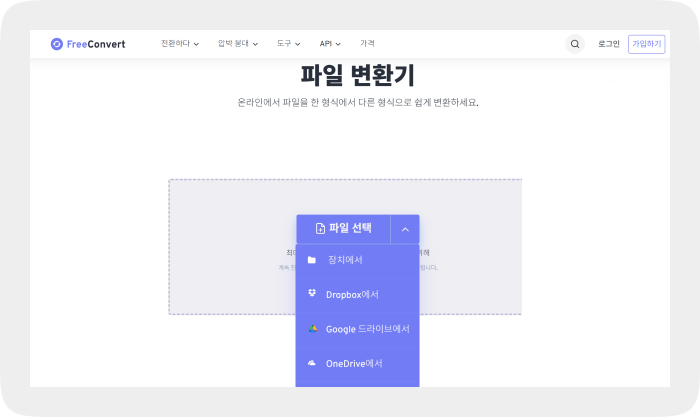
- Go to the site and click the “Choose Files” button to upload your video.
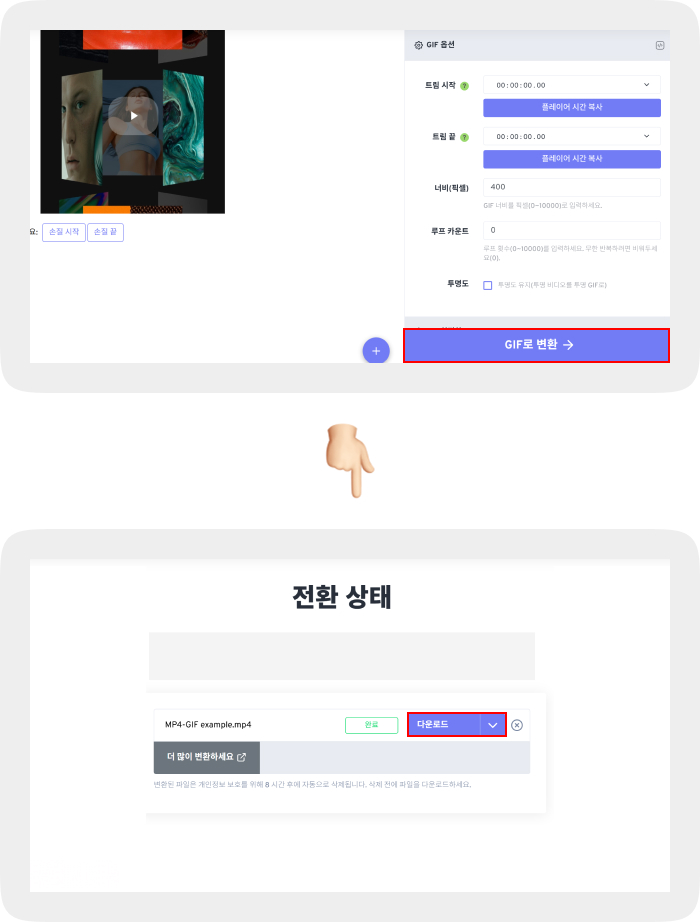
- If needed, use the Edit menu to trim the clip and adjust the speed.
- Click “Convert to GIF” and the conversion runs automatically.
- When the conversion is done, click the Download button to save it.
Tip: Short clips of 3 to 5 seconds look the most natural and loop smoothly.
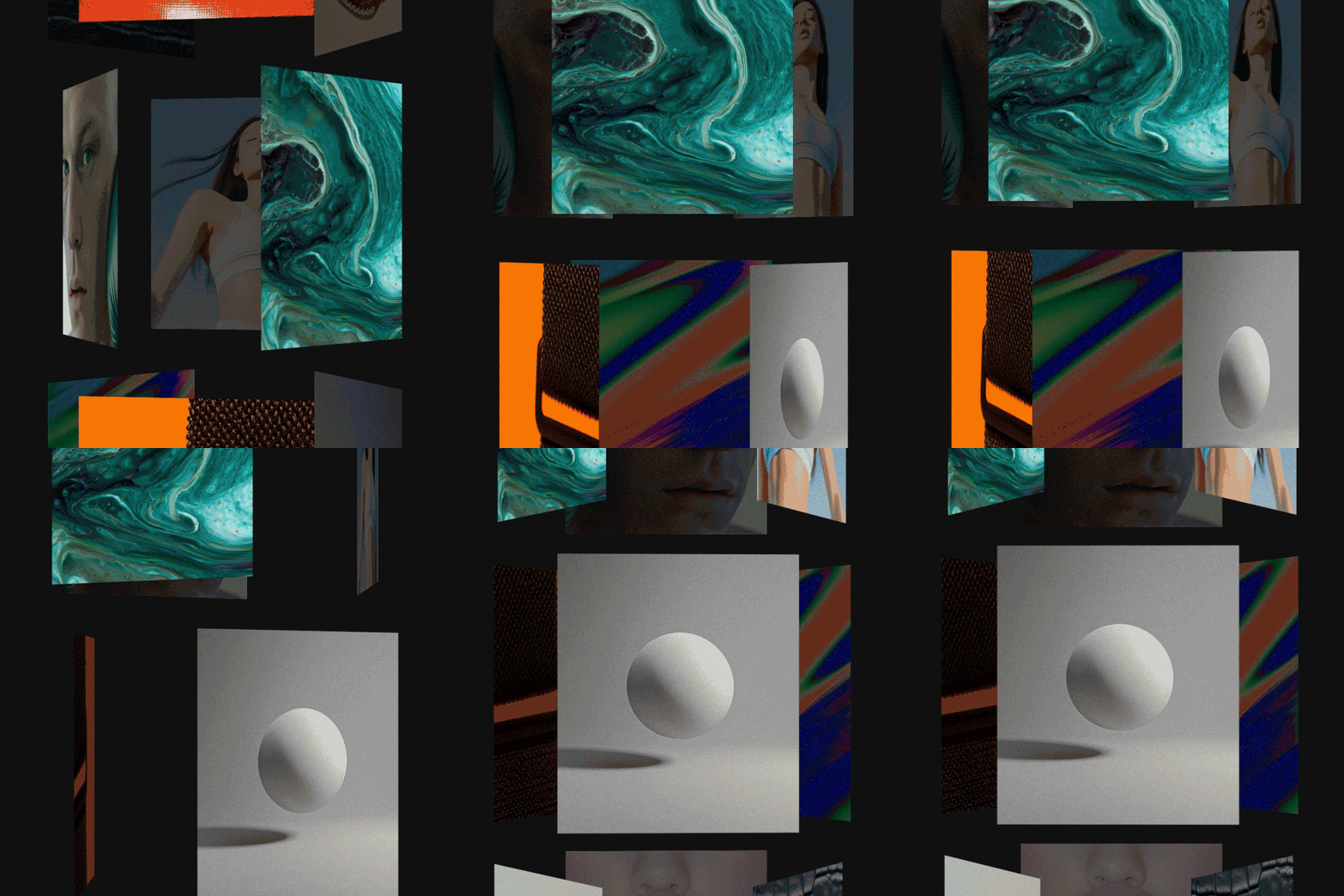
2. Making a GIF from multiple images
If you want to string photos together into an animated GIF, try the Adobe Express Convert feature.
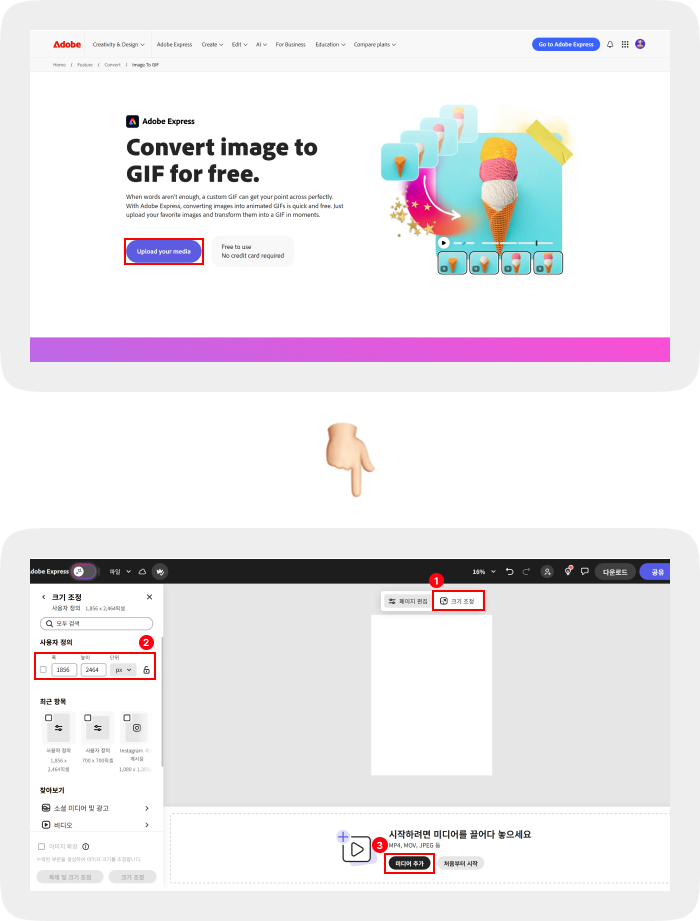
- On the site, click the “Upload your media” button to upload the photos you want to use.
- Click “Resize” at the top to adjust the canvas size to fit your image ratio.
Tip: Keeping the size and ratio of your photos consistent makes transitions smoother and the result more polished.
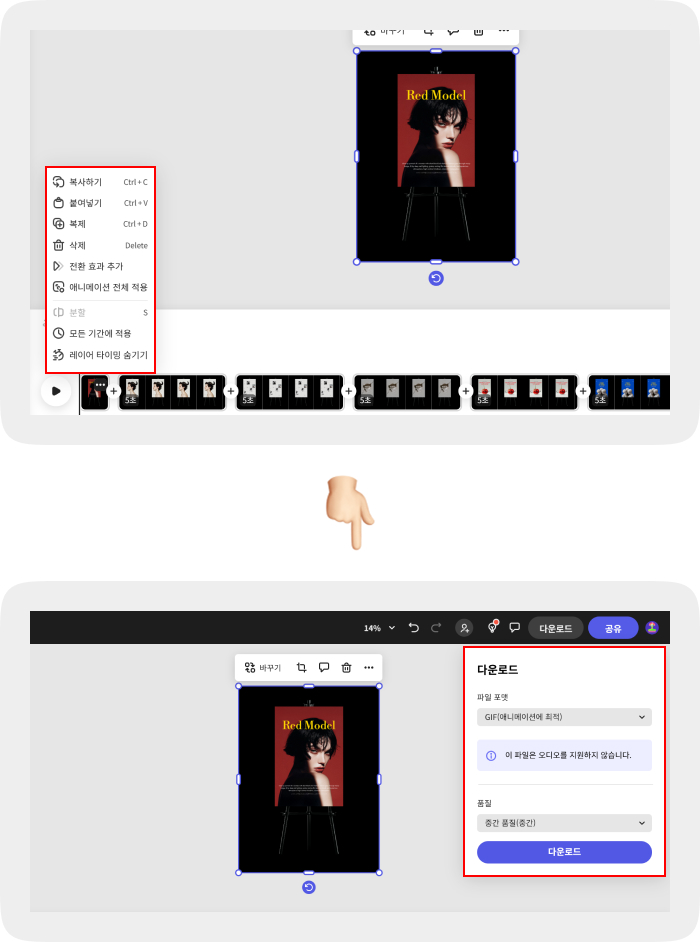
- If needed, you can drag images to change their order.
- Set the display time and transition speed, then choose the GIF file format and quality options.
- Check your settings, then click the “Download” button to save, and you’re done.
Higher quality settings make images sharper but can increase file size, so for the web a medium setting is recommended.
Recommended online tools
- Giphy: Add filters, text and stickers. Optimized for sharing on social media
- Ezgif: Supports image, video and webcam input, with fine speed control and cropping
- Makeagif: Converts from many sources, with speed control and frame editing
- Imgflip: Converts from video or images, with speed control and cropping
Checklist for making GIFs
- The higher the quality of your source video or images, the better the result.
- Keep it short, 3 to 5 seconds, for a natural loop.
- Keep a consistent frame rate so it plays smoothly.
- If needed, add text to get your message across clearly.
- When finished, check the file size and optimize it so it doesn’t slow down your website.
What is a GIF?
GIF(Graphical Interchange Format) is an image format devised in 1987 by American computer scientist Steve Wilhite while he was looking for “a way to display moving images at the smallest possible file size.”
It shows several images in sequence and loops automatically. In other words, it’s easiest to think of it as a moving image that looks like a short video.
GIFs have no sound and are lightweight, so they are widely used on social media, messengers, blogs and more, and their short but punchy loops convey emotions and situations intuitively.
In Korea, GIFs are commonly called “umjjal” (moving pic), and some people pronounce it letter by letter as “G.I.F.”.
GIFs vs. memes
Memes and GIFs are both digital media for expressing emotions and ideas, but they differ in form and use.
Memes are mostly static images with text used to convey humor or social messages. GIFs, on the other hand, are moving images (animations) that express emotions or situations more intuitively.
If memes are “shareable content” that spreads quickly on social media, GIFs are visual communication tools used across many channels, including websites, blogs and messengers.
In other words, a meme is a message, a GIF is emotion delivered through motion.
Why GIFs are popular
Over the past few years, GIF searches and usage have grown steadily.
As social media, messaging apps and meme culture spread, GIFs became a key way to add humor, emotional expression and visual accents.
- Expressiveness: Conveys motion and emotion at once, allowing richer communication than static images
- Shareability: Lighter and faster to load than video, which helps them spread on social media
- Versatility: Works for many purposes, such as humor, reactions and product introductions
- Fun factor: An emotional expression tool that supports distinctive online communication
How to use GIFs on social media
GIFs are a visual device that boosts engagement and responsiveness in digital communication.
Examples
- Messaging: Attach GIFs to texts, emails and DMs to express emotions naturally
- Social media posts: Use GIFs in comments or on timelines to boost engagement
- Presentations and documents: Insert GIFs between long blocks of text to add visual rhythm
- Websites and blogs: Use them to highlight a specific section or express your brand’s personality
Tip: For social media GIFs, keep them “short and clear,” and for brand website GIFs, keep “a light file size and a consistent tone and manner.”
Brands and users who use GIFs well
GIFs were first used on community-centered platforms such as Tumblr, Buzzfeed, Reddit,
but now they are a built-in feature on almost every major social network, including Facebook, Twitter and Instagram.
For example, Facebook introduced GIF search in Messenger in 2015, and Twitter added the same feature in 2016. That year, more than 100 million GIFs were shared on Twitter alone.
Today GIFs are not just a trend but are used as effective digital marketing assets.
Especially since remote work became widespread, they have also become a communication tool that lightens the mood among team members in work messengers like Slack.
Things to watch out for when using GIFs
GIFs have strong visual impact, but overusing them can hurt website performance and user experience.
- Slow loading: GIFs are larger than JPEG or PNG files and can slow your site down
- Content aging: Trends change quickly, so GIFs need frequent updating
- Overuse: Too many GIFs hurt focus and cause fatigue
- Performance issues: The more GIFs you use, the worse the impact on SEO and site speed
- Accessibility issues: Users with visual impairments may not be able to perceive the content, so providing alt text is important
GIFs are a core language of digital communication that can visually express a brand’s tone and emotion in a short time. Used well, they can raise engagement with brand content and further strengthen the visual quality of your website.
Nov.2025By Studio JT